
Pick the template for your packaging, design your artwork in it, then send it as a print-ready PDF.
Always start from the template of the product you ordered: sleeve type, spine, pockets, folds and cut-outs are all part of the production specification.
1 · Choose your template
Using the templates: place your artwork in front of the marks in the template, preferably keep the artboard size unchanged, and always centre the artwork on the artboard.
Choose the matching template: 3 mm single jacket, 5 mm double jacket, gatefold, trifold, inner sleeve with or without a hole, record labels, inserts or booklet. Label artwork is required for every record side.
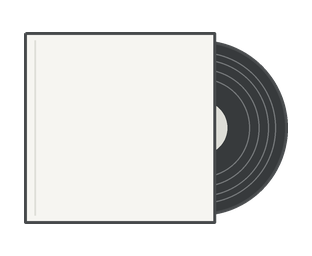

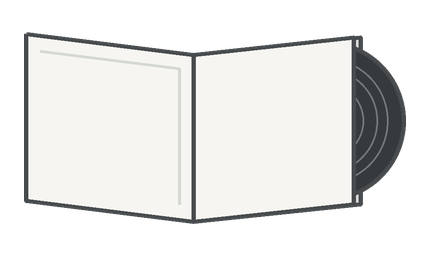
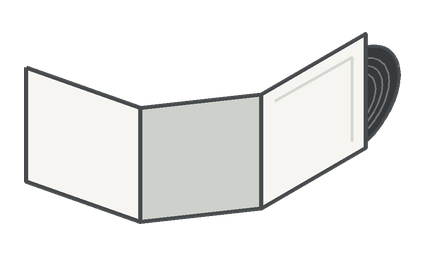

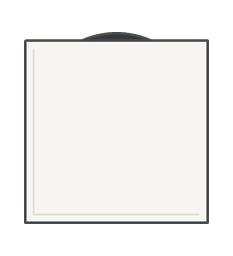
Inner sleeve without hole
Printed inner sleeve · uninterrupted artwork area


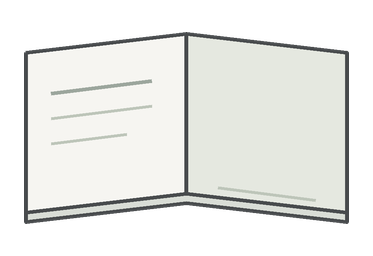
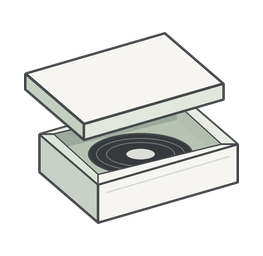
CD templates
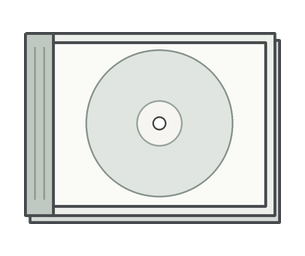 CD Jewel Box · PDF ↓ ·
  CD label · PDF ↓
2 · File specs
The key values in one place, with details and reasons below.
File
print-ready, at 1:1 scale
Colour space
CMYK
spot colours only if agreed
Images
300 dpi
at final size
Bleed
3 mm
marked on the template
Fonts
embedded
or converted to outlines
Black text
K100
black channel only
Large black areas
C60 M40 Y40 K100
rich black
File name
no accents
one file per product
File and size
Template and artboard
Place your artwork in front of the marks in the template, and preferably don’t change the artboard size.
This keeps the cut and fold marks in place, so the artwork can be matched exactly to the product template in production. If the artboard size changes, the marks can shift relative to the artwork.
Recommended
Position
Always centre your artwork on the artboard.
With the artwork centred, it is clear how it sits on the template and no one has to guess the placement.
Required
Format
Print-ready PDF, one file per product: outer sleeve, inner sleeve, labels (one per side, marked A/B), insert.
This keeps files clearly identifiable so they can’t get mixed up in production. Use file names without accents.
Required
Size
1:1 scale, using the template of the product you ordered.
Spines, pockets and cut-outs differ by product, so don’t rescale a template made for another sleeve type.
Required
Resolution
Raster images at least 300 dpi at final print size.
Enlarging a small image does not bring back detail.
Required
Bleed and text area
3 mm bleed on every side. Keep important text inside the template’s text line.
Cutting and folding can shift by fractions of a millimetre; bleed and the safe area absorb this. Keep crop marks outside the artwork and remove the template’s guide lines from the PDF.
Required
Colour and type
Colour space
CMYK. Convert any leftover spot colours to CMYK.
A spot colour (e.g. Pantone) can only stay in the file as a separate colour agreed in advance.
Required
Fonts
Embed all fonts or convert text to outlines.
A missing font may be replaced by another one at print time. Check accented characters after export.
Required
Layers, transparency
Flatten layered or effect-heavy artwork from Photoshop before export.
Transparencies and overlapping objects can behave differently in print than on screen.
Recommended
Gradients
Avoid very light gradients below about 10% tone.
These can band or disappear in print. Rasterised gradients should also be 300 dpi.
Recommended
3 · Black and overprint
K100
Text and fine lines
Black channel only. For small type, lines and barcodes.
C60 M40 Y40 K100
Large black areas
Rich black for solid dark areas and backgrounds.
RGB 0/0/0
Don’t use
Converted to CMYK it puts too much ink on paper, which can smear and dries slowly.
Black
Black text
Single-channel 100% K black, not four-colour black.
With four-colour black, even the slightest misregistration leaves coloured fringes around letters. Our production workflow overprints black; if you need something different, tell us in advance.
Required
Large black areas
C60 M40 Y40 K100 rich black.
Plain 100% K looks greyish on large areas; rich black gives a fuller, deeper black.
Recommended
RGB black
Don’t use RGB 0/0/0 black.
Converted to CMYK it gets a lot of all four inks (for example C75 M68 Y67 K90). This can smear in print and dries slowly.
Required
Overprint
White and light elements
Set them to knockout, not overprint.
A white object set to overprint disappears from the print.
Required
Final check
Review the PDF with overprint preview and colour separations.
This shows if an element ended up on the wrong channel or a white object is set to overprint.
Recommended
Special finishes and open files
Please discuss foil, embossing, spot varnish, die-cutting and special paper with us before you finalise the artwork.
AI, PSD and Corel source files are not our standard delivery format. Processing them may involve an operator fee; in that case, include all linked images and fonts.
The mockup is a visual preview; production always uses the approved print-ready PDF.